Check your EA works on your computer
The Algo Trading button is green, and your EA’s name shows in the top right corner of the chart.

 Back to website
An EA only trades while MetaTrader 5 is open and online. Rent the virtual server built into MetaTrader and it keeps running when your computer is off. You rent it yourself and pay MetaQuotes directly. SAI never asks for or sees your password.
The Algo Trading button is green, and your EA’s name shows in the top right corner of the chart.
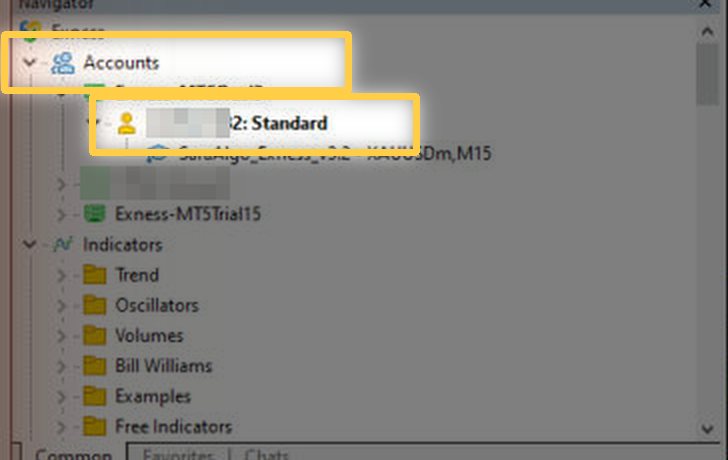
Press Ctrl + N if you can’t see it. Under Accounts, find your trading account number.
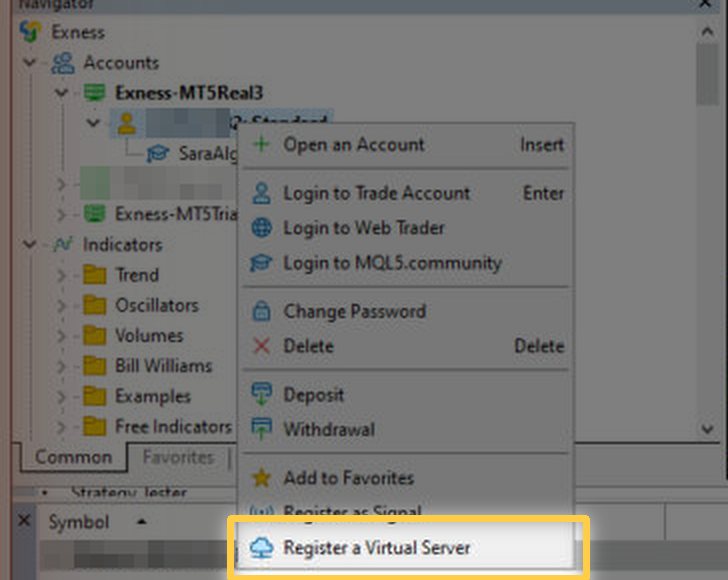
Click Register a Virtual Server at the bottom of the menu. Don’t click Deposit or Withdrawal.
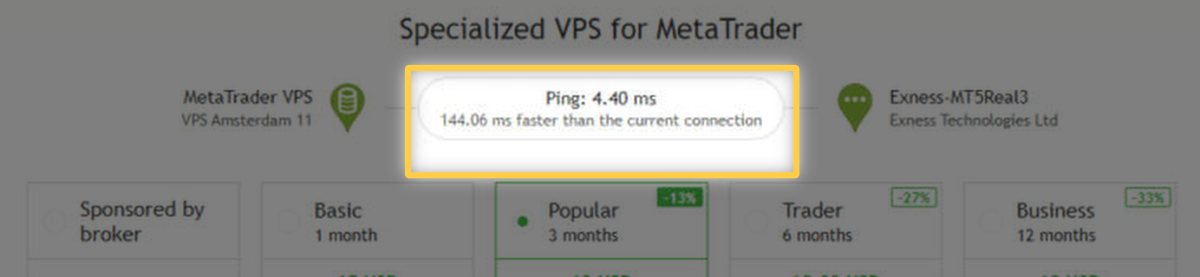
MetaTrader picks the server closest to your broker and shows the ping, which is the delay. Lower is better.
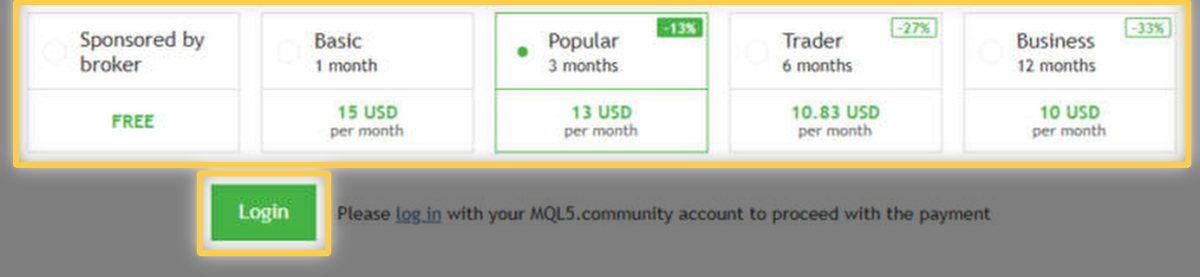
Some brokers offer a free plan if you meet their conditions, so ask your broker. Otherwise pick a monthly or longer plan. Prices show here, inside MetaTrader. Press Login, then pay from your MQL5 balance.
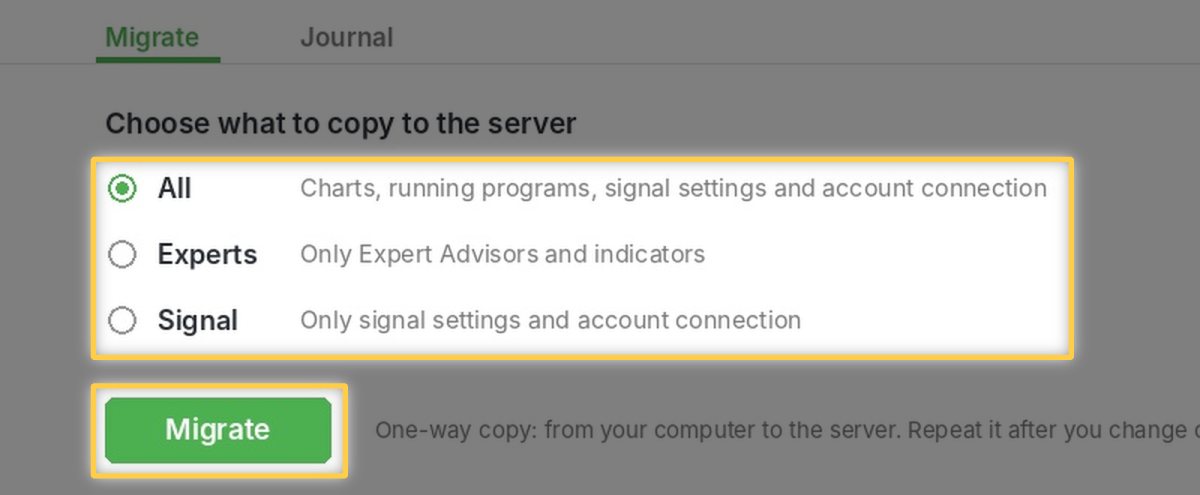
In the VPS tab, choose All or Experts, then press Migrate. It copies charts with a running EA, your indicators, allowed web addresses and your account connection. The copy goes one way, from your computer to the server. Migrate again after you change anything.
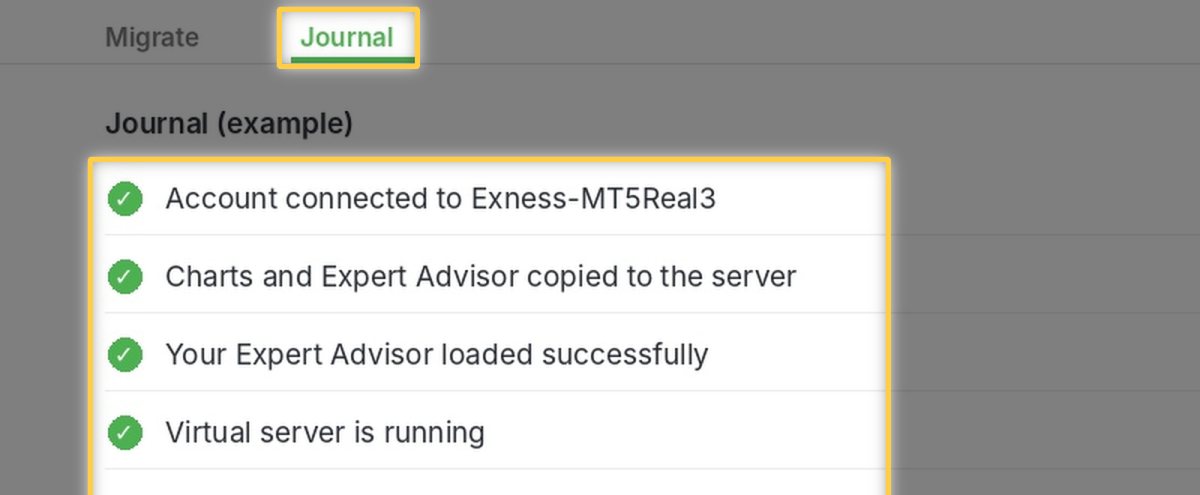
Open Journal. You should see your account connect and your EA load. Your card in My SAI turns green about a minute later.
Click Algo Trading so it turns red, or close MetaTrader on your computer. Only one copy should trade your account.

Prefer another provider? Any Windows VPS works: install MT5, log in, copy your EA and licence key, and set Allow WebRequest as on your computer. You manage that server and its security yourself.
Ask Dhana or Sai on the podcast page. They explain these steps in English, Tamil, Hindi or Arabic. For licence or account questions, email us.
Ask Dhana or SaiEmail supportTrading is risky and an EA does not remove risk. Running 24/7 means your EA keeps trading when you’re not watching, so check your risk settings first. This guide is general information; MT5 menus and plans can change. Pictures marked Illustration are examples. Read the Risk Disclosure.